Locked in
Hold to lock in. The clock starts.
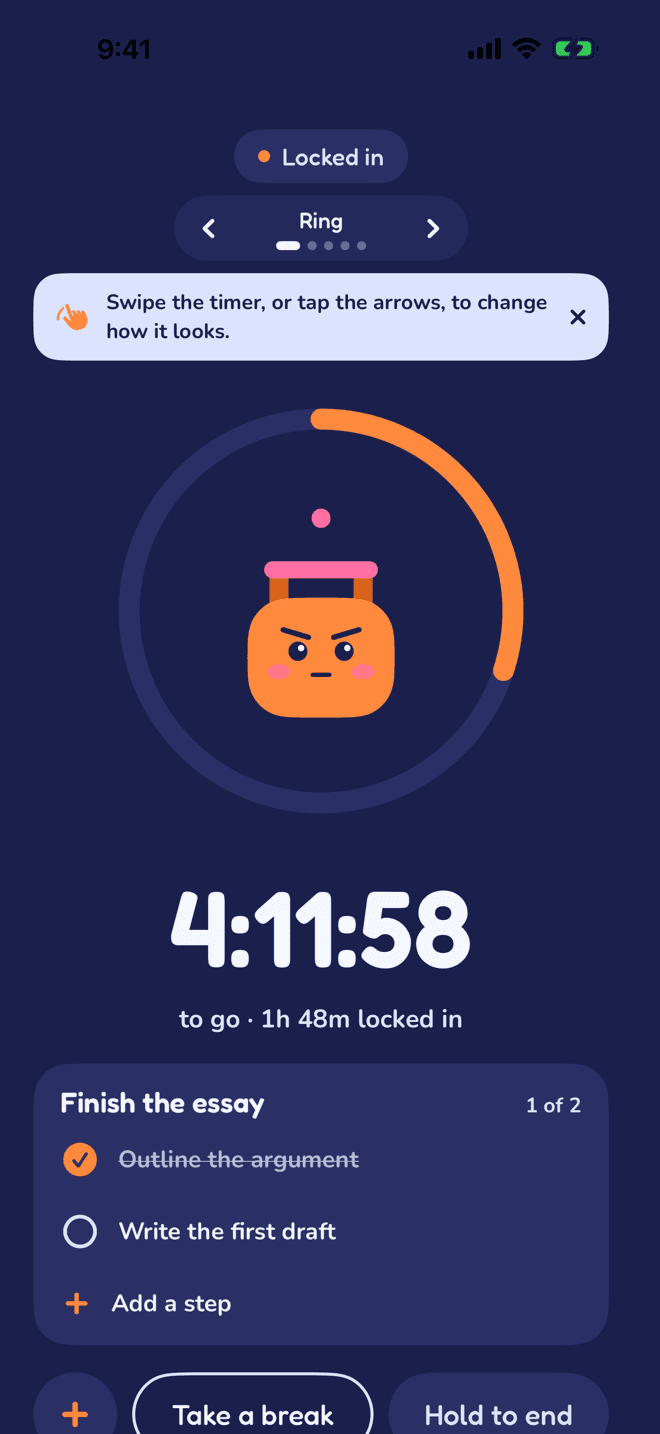
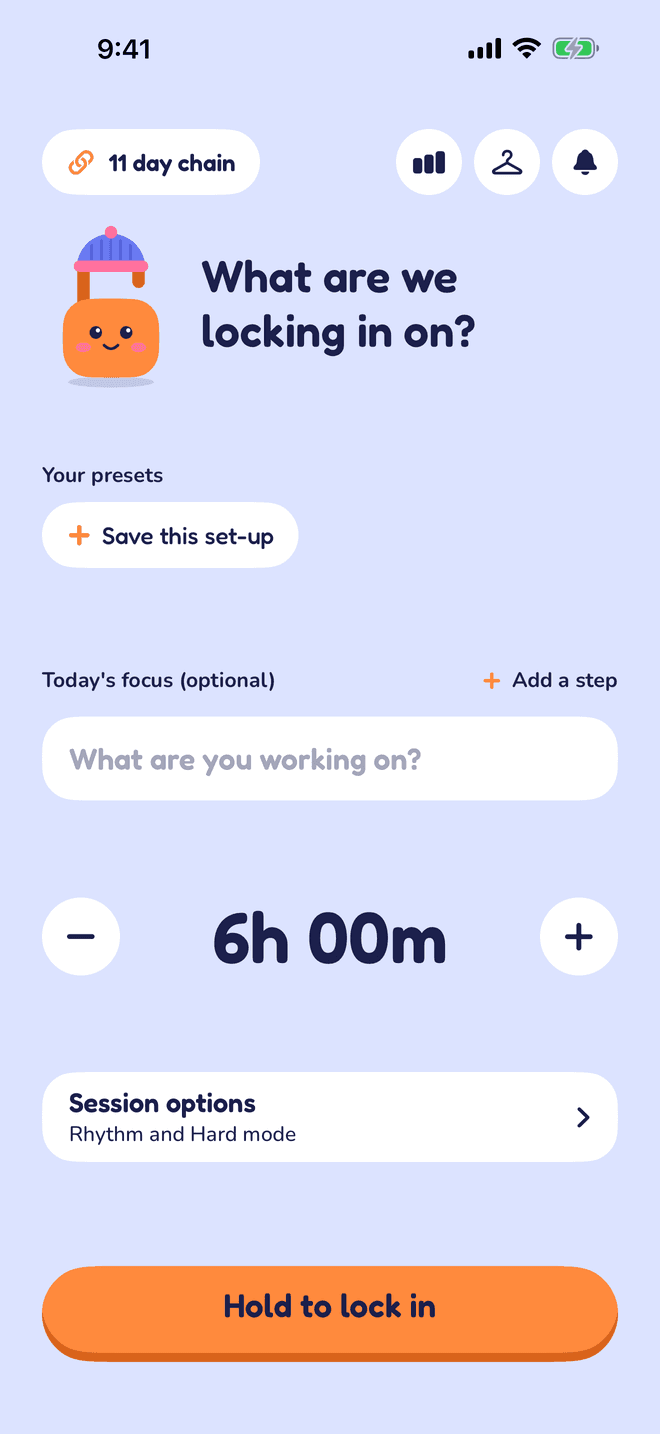
Pick your hours, then press and hold. Latch snaps shut and counts down while you stay in the app.
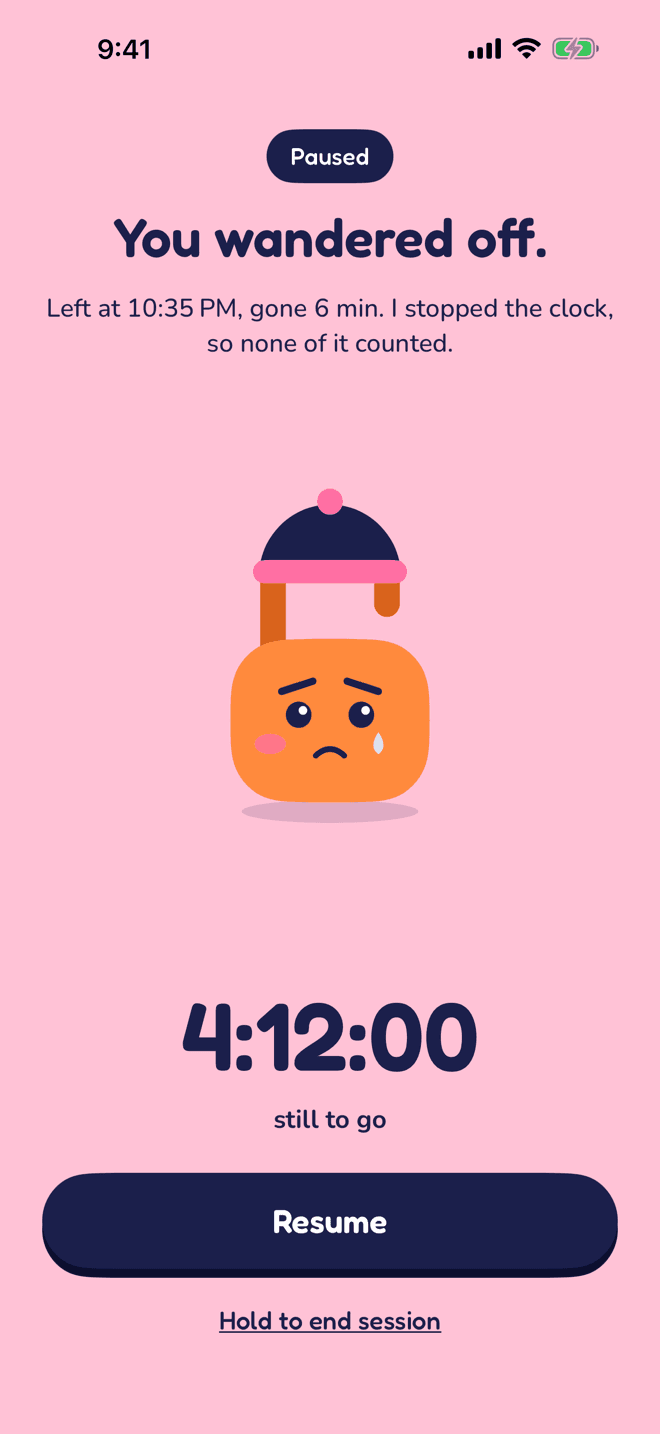
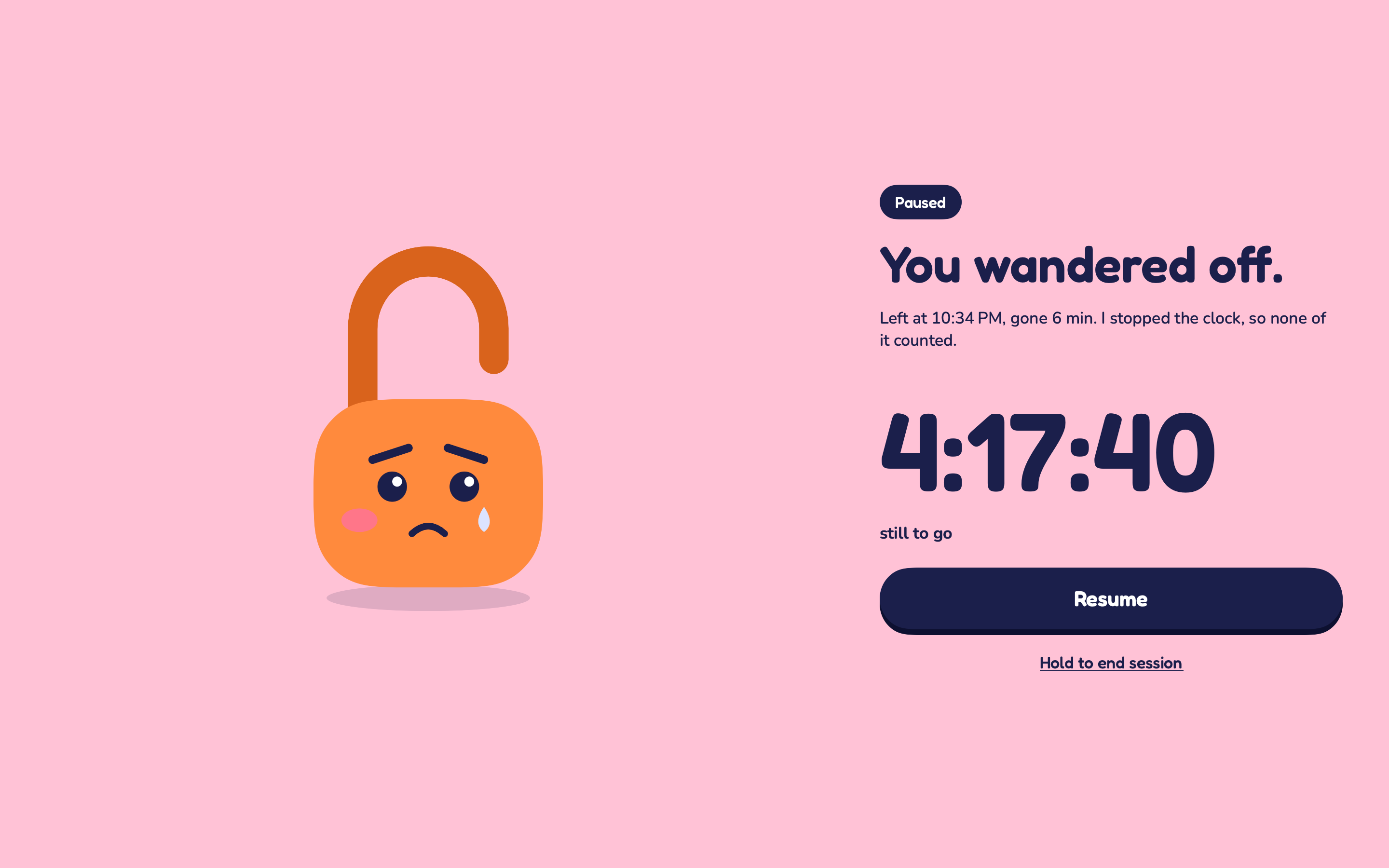
You wandered off for 1 sec. I stopped the clock, so none of it counted.
Studying, deep work, writing, practice: set your hours and lock in. Leave to scroll and Latch stops the clock, and it stays stopped until you come back and tap resume.
Free. No account. iPhone and Mac.
This little demo follows the same rule as the app. Hold the button to lock in, then switch to another tab and watch the clock stop.
6:00:00
a 6 hour goal
And you're scrolling right now.
A normal timer
1:12:00
Still counting. Says you worked the whole time.
Locked In
1:12:00
Stopped the second you left.
You set six hours. You checked one thing. Forty minutes later, a normal timer says you've been working the whole time. Locked In only counts the time you actually stayed.
Pick your hours, then press and hold. Latch snaps shut and counts down while you stay in the app.
Switch to another app and Latch pops open. A nudge calls you back within seconds, and the time you were gone never counts.
Nothing restarts by itself. Come back, tap resume, and keep going until the hours you promised yourself are real.
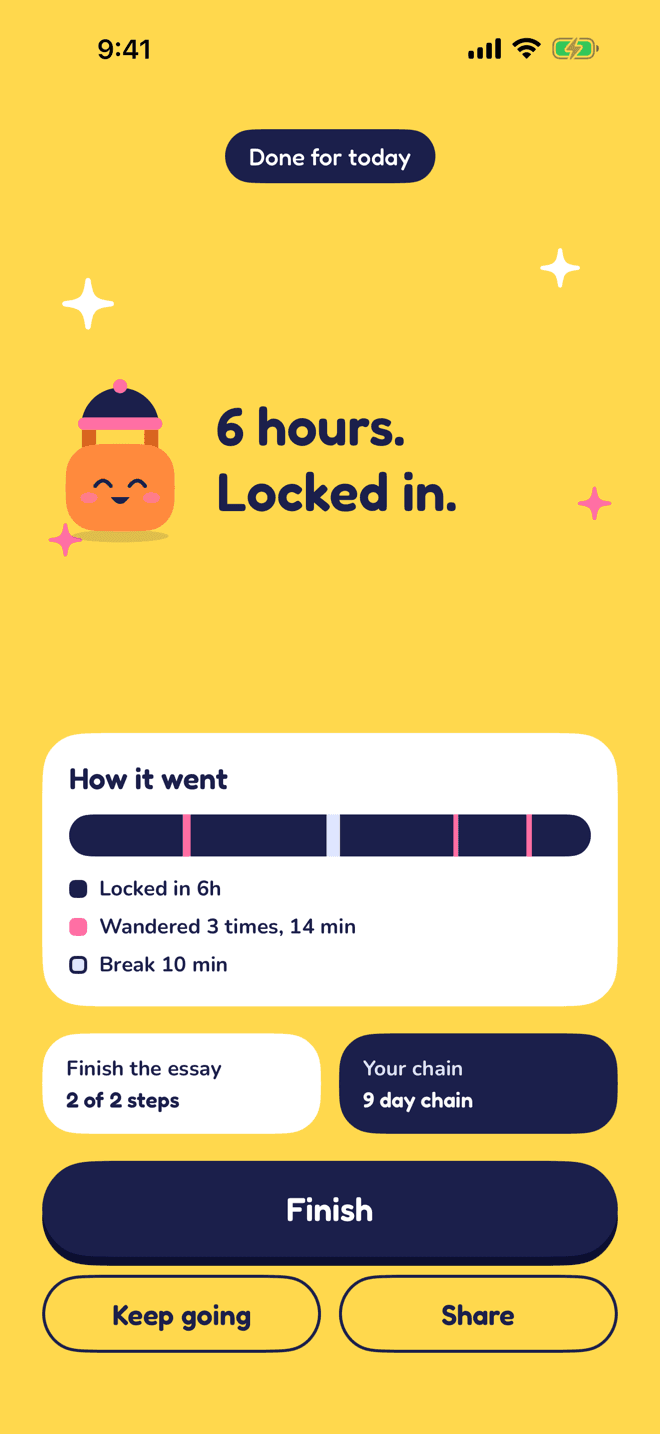
Ten seconds after you leave, Latch taps you on the shoulder. Then again at two minutes, and at ten. The moment you're back, the nudges stop. The clock doesn't restart until you tap resume.
9:41
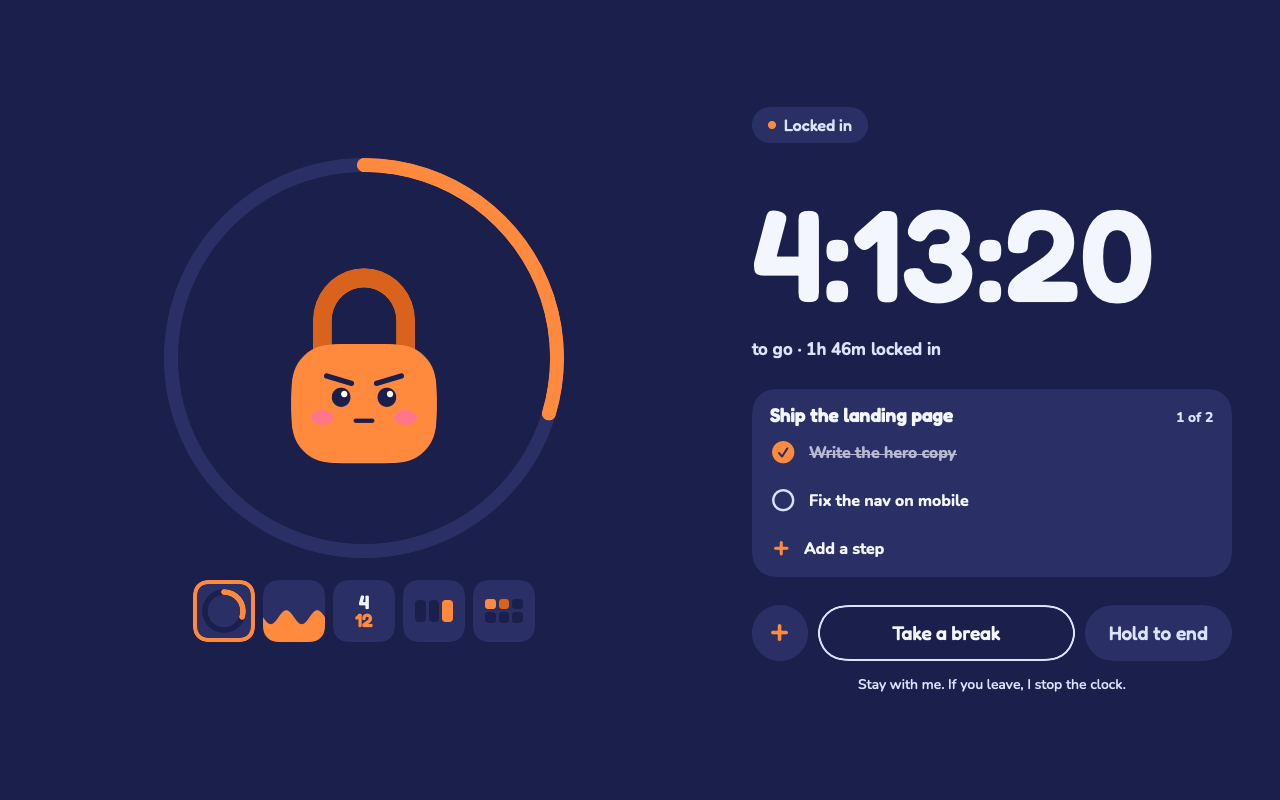
Locked In is a native app, not a website. On iPhone it pauses the moment you swipe away. On Mac it sits on your screen like a desk clock and pauses when you click into something else.
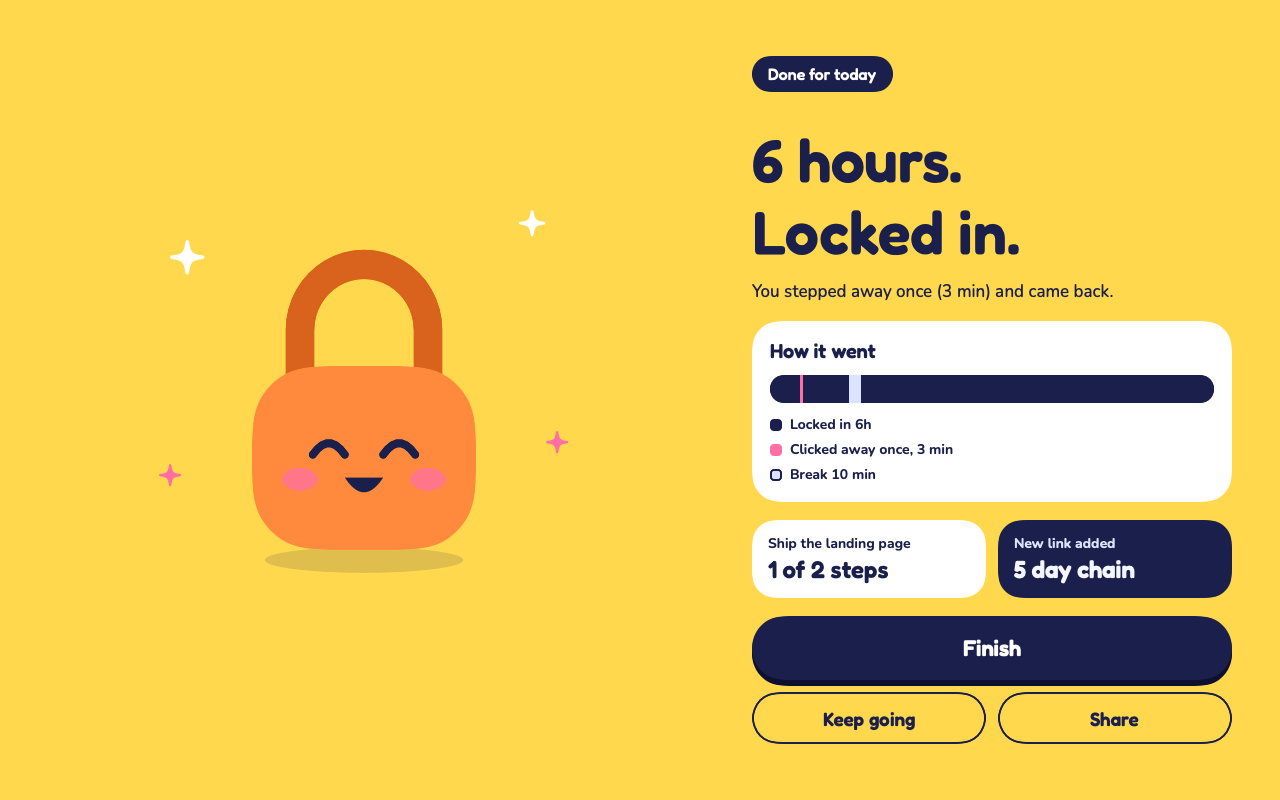
Lock in on your Mac in the morning and your iPhone at night. It all adds up to the same day, the same week and the same chain.
Your hours and your chain
Every device's focus time counts toward today.
Your presets
Save a set-up once and start it anywhere.
Latch's look
The hat you earned shows up everywhere.
No account
It uses your own iCloud. There's nothing to sign up for and we never see it.
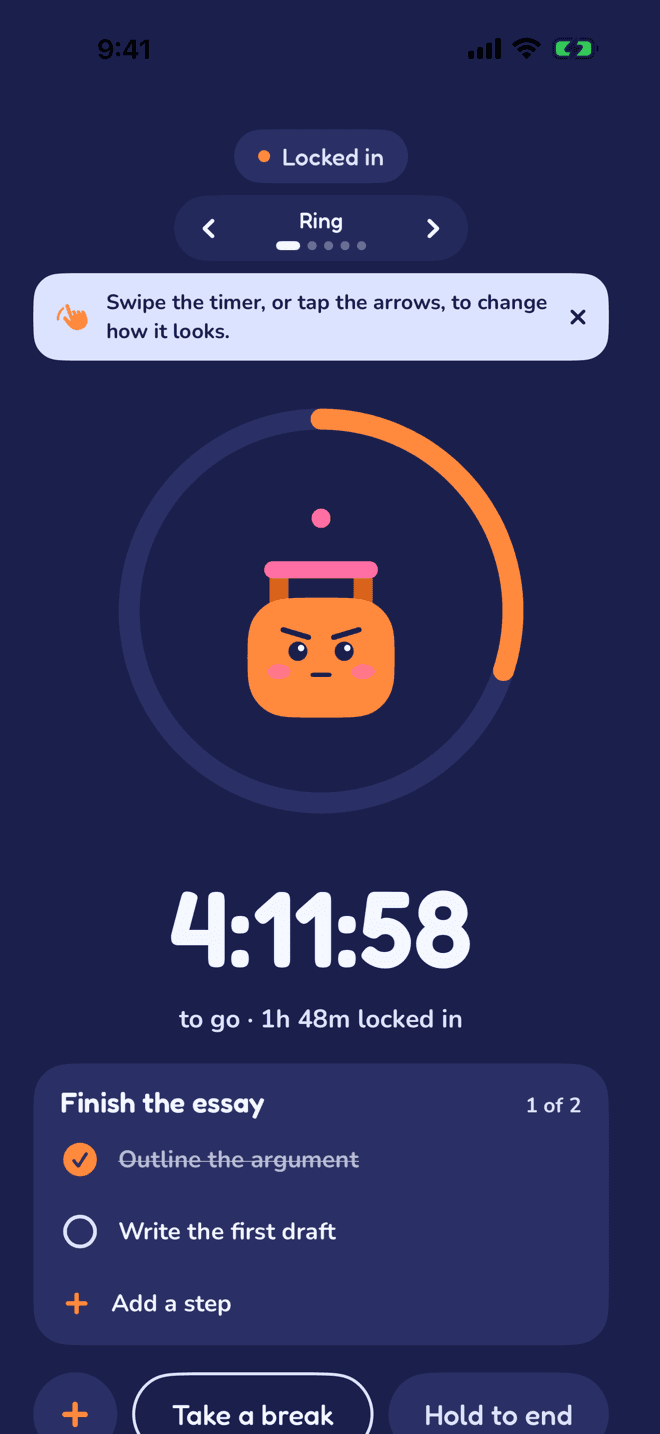
Swipe the timer or tap the arrows to change face, even in the middle of a session. The clock never skips a second.
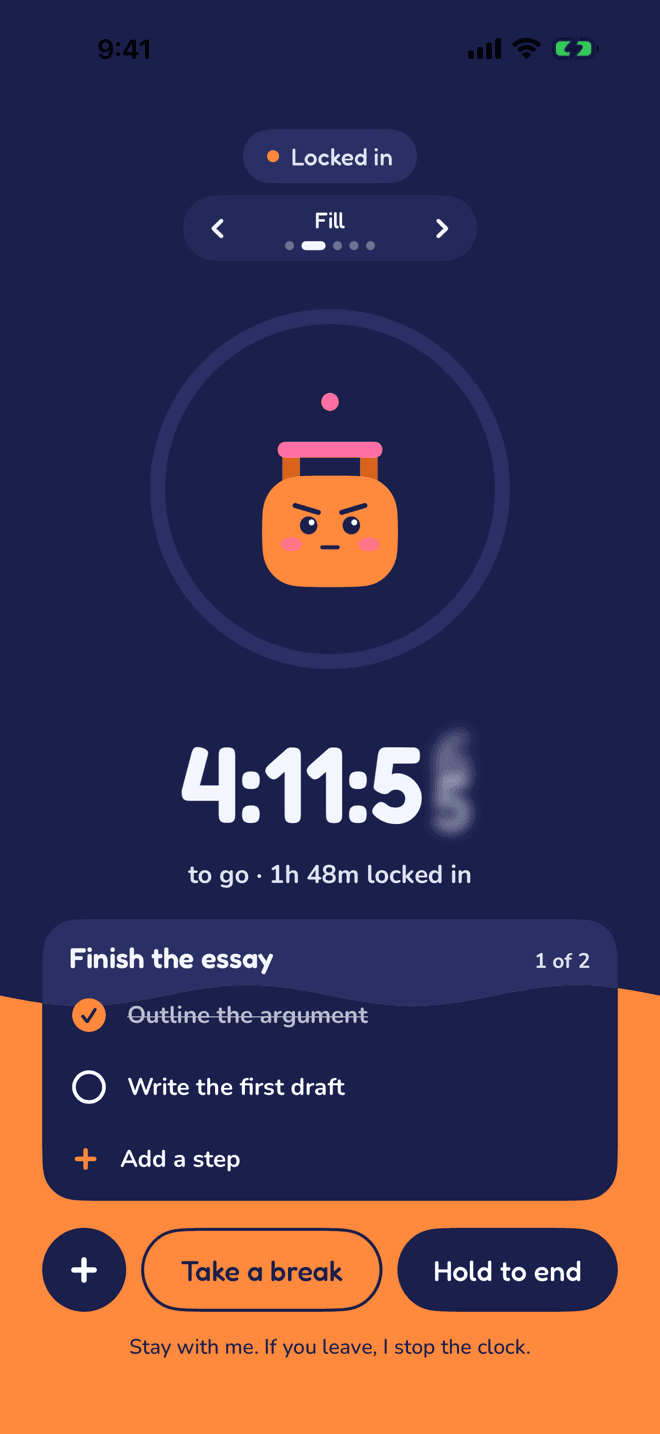
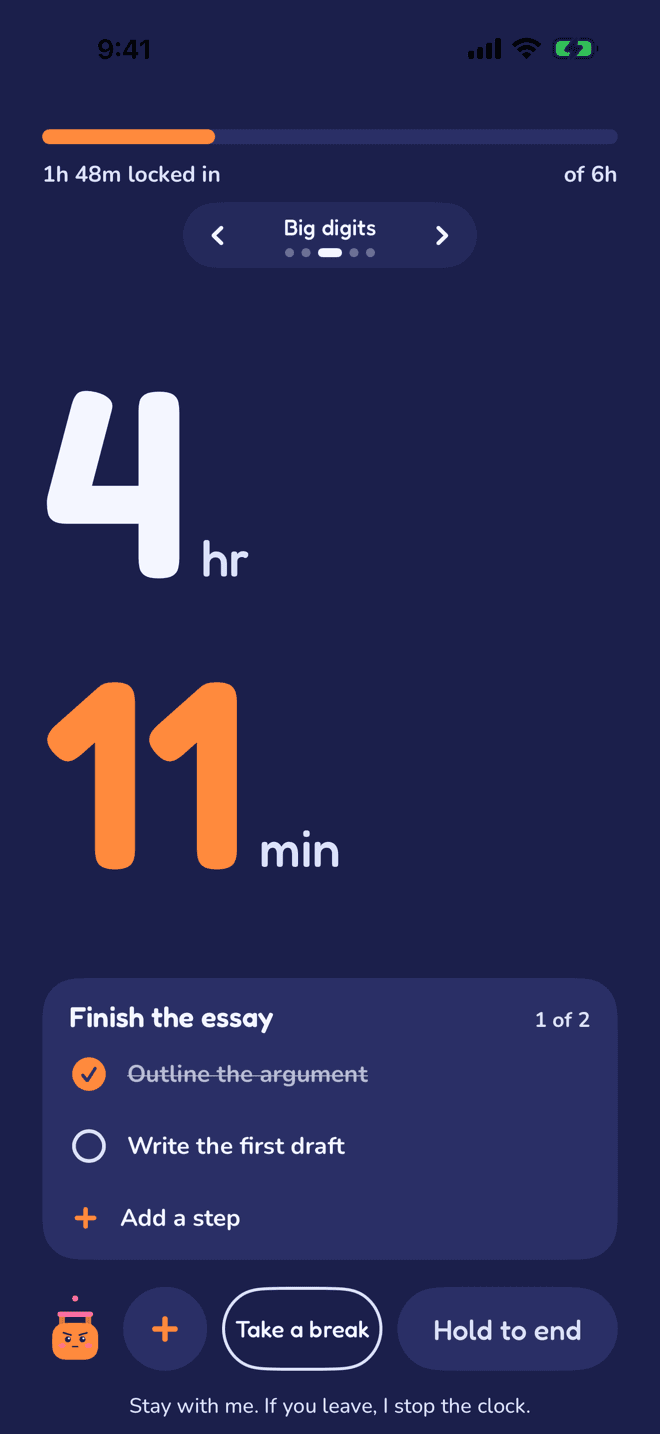
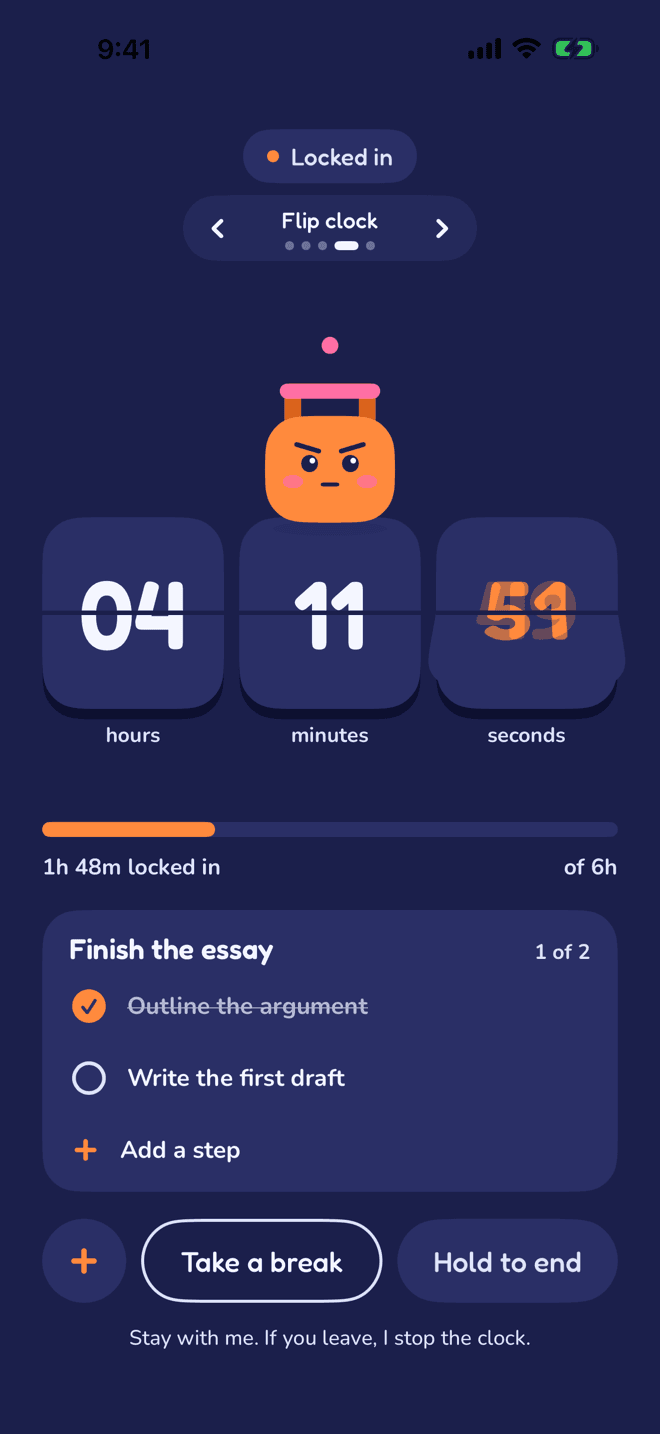
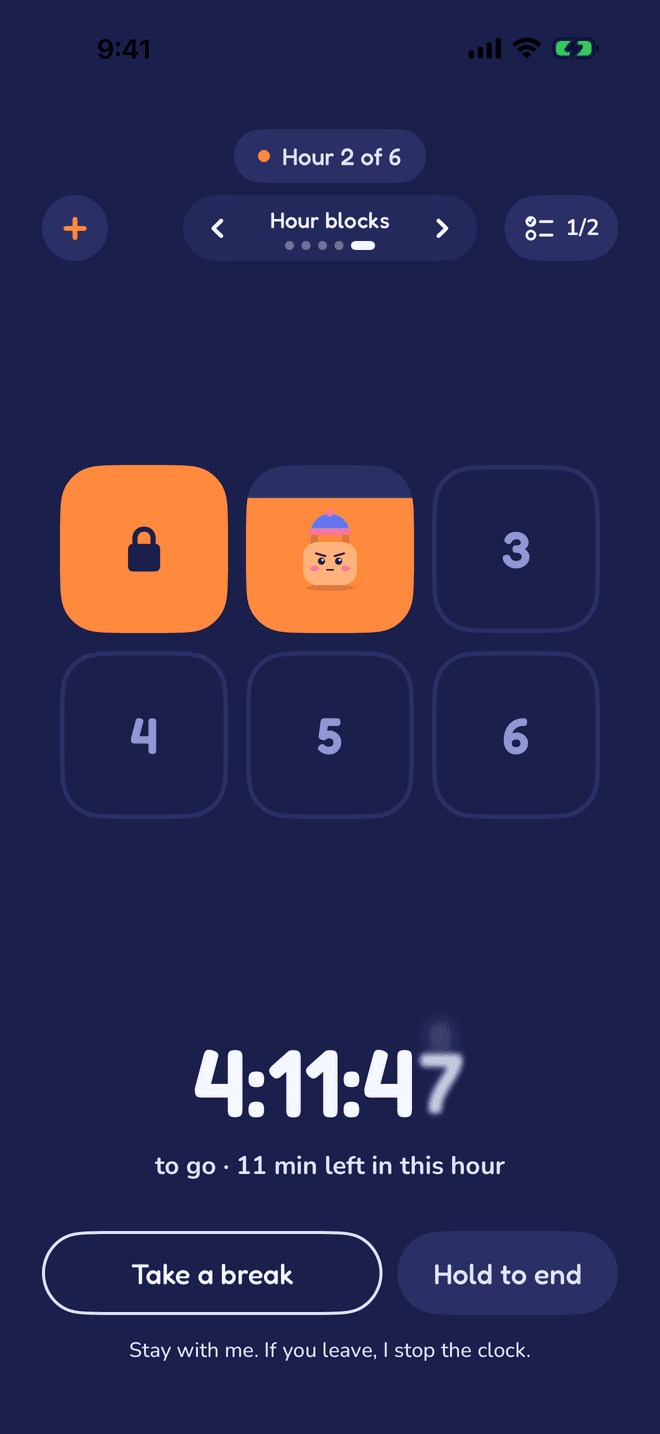
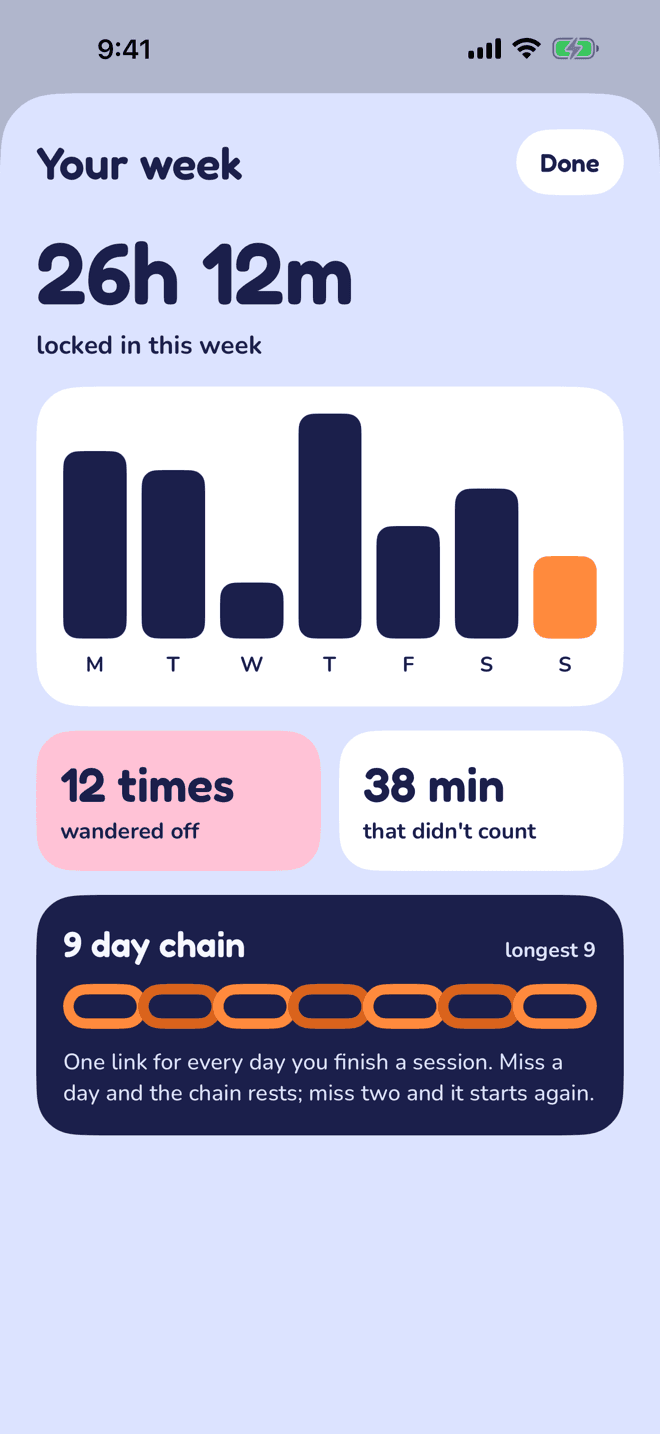
Tap your chain on the home screen to open your week: every day's focus, how often you wandered off, and the time that didn't count.
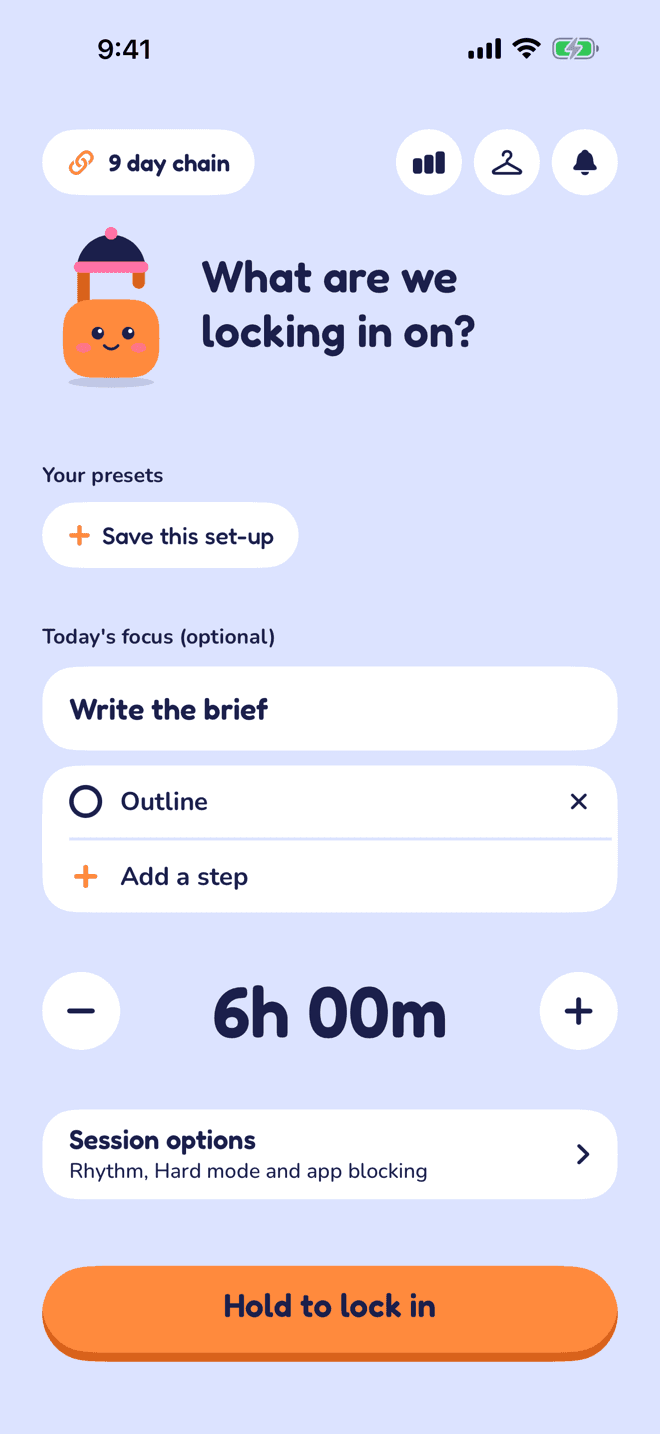
Give the session a name and break it into steps. Tick them off as you go, and add another one mid-session when the work grows.
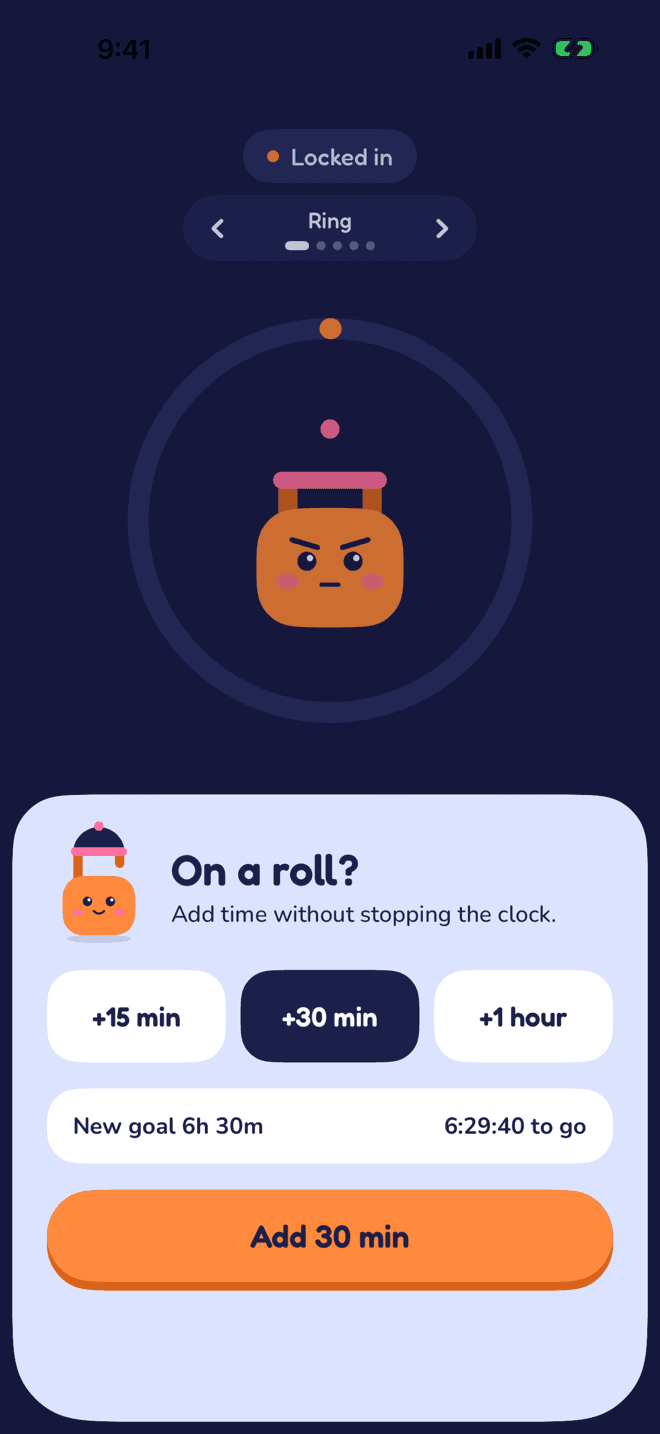
Add 15 minutes, 30 minutes or an hour without stopping the timer. Hit your goal and still have more in you? Tap keep going.
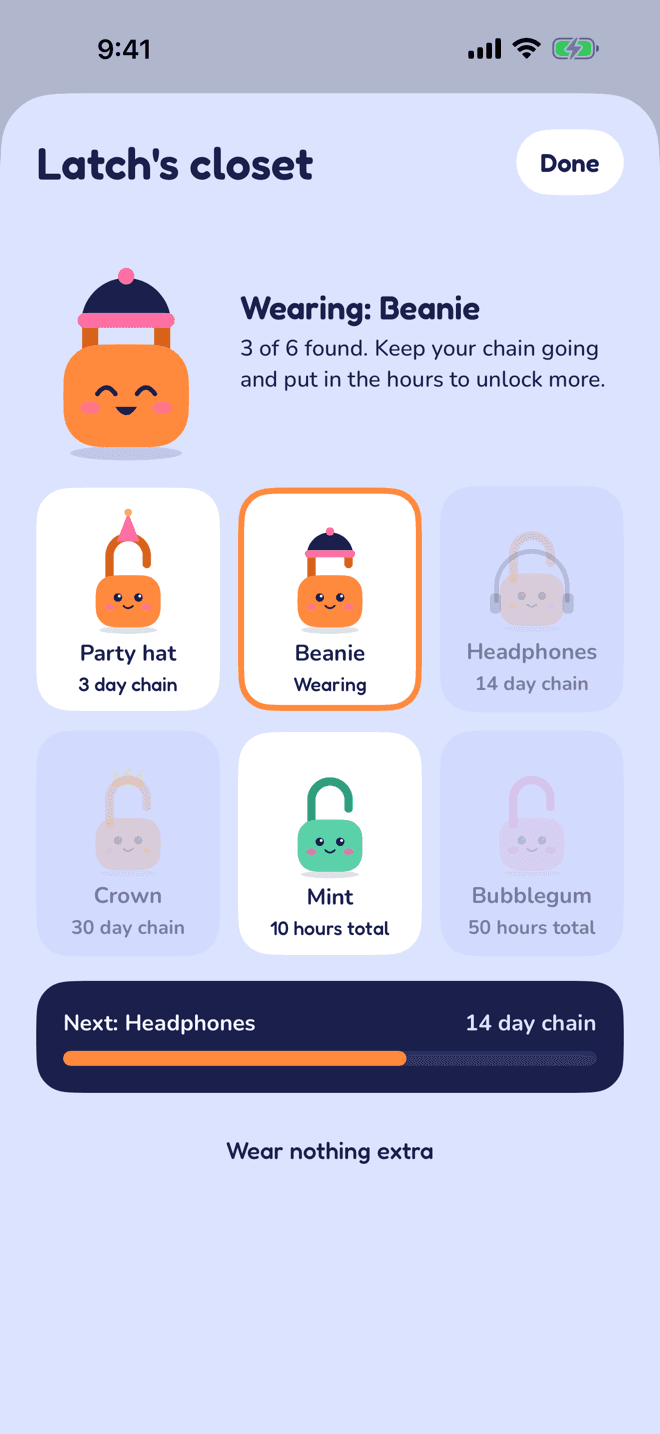
Hats and colours unlock as your chain and your hours grow. Nothing to buy. The only way in is doing the work.
While you're in another app, the Live Activity shows the stopped clock, so you can't pretend it's still running.
Pick how long, and stretch it if you need to. Break time never counts, and Latch pings you when it's over.
Ending a session early means holding the button while Latch shakes its head. No reflex taps.
Pick the days and the time, and Latch asks if you're ready to lock in. Off until you turn it on.
Start a session or one of your presets by voice, or ask how long you've focused today.
Widgets show today's focus and your chain, on the Home Screen and the Lock Screen.
History, presets and Latch's look stay in step across your iPhone and Mac through your own iCloud.
Finish a session and share a card of the hours you locked in.
Optionally pick apps to shield with Screen Time while you're locked in. On iPhone.
The same timer on a big screen. Click away from it and it pauses there too.
No account, no analytics, no ads. Your sessions are saved on your phone or Mac, and kept in step between your own devices through your iCloud. We never see any of it. Read the privacy policy.
The clock stops at that moment. When you come back you'll see how long you were gone, and the timer stays frozen until you tap resume.
No. There's no sign-up, no ads and no tracking. Your sessions live on your device, and if you use iCloud they stay in step across your own devices. We never see them.
No, it's off by default. The timer works fully without it. If you turn it on, iOS asks for Screen Time permission and you choose which apps to shield.
Tap the chain at the top of the home screen. It opens your week, with each day's focus, how often you wandered off and your longest chain.
Swipe the timer left or right, or tap the arrows above it. You can switch in the middle of a session without losing a second.
Yes. Tap the time to type anything from 5 minutes to 12 hours, or use the stepper and the quick buttons.
Coming soon to the App Store for iPhone and Mac.